Email triage
Email triage receives forwarded security reports at project-specific and account-level incoming addresses. A triage agent reads the report, matches it against the project's approved targets and assets, and turns valid requests into assessment work — asking follow-up questions by email reply when the report is ambiguous.
The feature is tier-gated. Provisioning and configuration controls may not appear on every account.
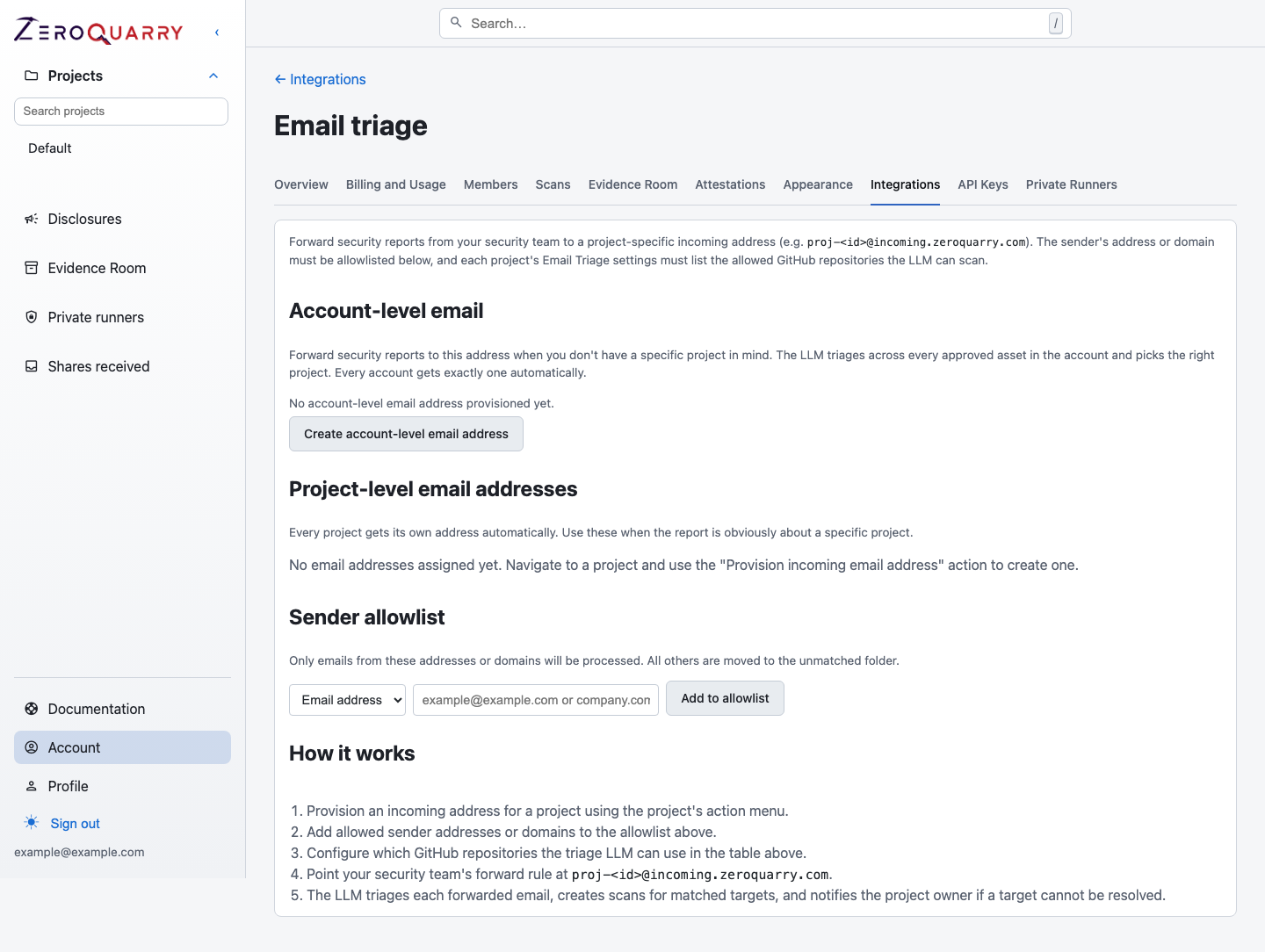
The integration page keeps sender trust and target boundaries in one place. Addresses appear here once they are provisioned from a project.
Processing boundary
An email is processed only when:
- the recipient maps to an active project address (or the account-level address)
- the sender matches an account allowlist entry by exact address or domain
- the target can be resolved within that project's approved repositories, assets, or permitted remote-scan boundary
Unmatched recipients and non-allowlisted senders are moved to an unmatched folder and are never handed to the triage model. Reports that cannot resolve to a configured target are surfaced for review instead of expanding the boundary automatically.
Addresses
Two kinds of incoming addresses exist:
- Project addresses (
proj-<id>@incoming.zeroquarry.com) route reports to one project. Provision one from the project's actions (Provision incoming email address); it then appears on the project's Email tab and in the integration page. Use project addresses when the report is obviously about a specific product. - An account-level address routes across every approved asset in the
account and lets the triage agent pick the right project. Create it from the
integration page, and use it as the
security@target on your vulnerability-disclosure page when reports may concern several products.
Addresses can be revoked when a project should stop receiving work; revoking does not delete the reports already processed.
Configure trusted senders
Add either:
- an exact email address, such as
researcher@example.com - a domain, such as
trusted-partner.example
An exact address is the safer default. Use a domain only when everyone who can send from it is intended to create triage work.
Constrain targets per project
Each project's email-triage settings (the project's Email tab, also shown in the account integration page) decide what the agent may propose:
- Allowed GitHub repositories, one per line.
- Allow remote URL scans — leave off unless the project is authorized to test live targets that arrive in reports.
- Auto-start scans — decide whether matched reports start scanning immediately or wait for an owner to review the proposal.
The project's profile
is the outer boundary: a source-code project cannot accept a remote-scan
request from an email no matter what the report asks for. Reports are matched
against the project's approved assets where possible, so a researcher's report
about staging.example.com links the resulting scan to that asset.
What the triage agent does
For a matched message, the agent:
- extracts the report content and routing context
- identifies the target, scan type, and useful notes
- validates the proposal against the project's profile, target policy, and approved assets
- starts the scan — or stages it for review — after the entitlement and target checks pass
- replies to the reporter, threading the answer under the original message
with standard
In-Reply-ToandReferencesheaders - marks the message processed so it is not handled twice
The conversation continues like an inbox: if the reporter replies with more detail, the agent reads the reply in the context of the thread, revises the proposal, accepts explicit scan requests, and keeps the full exchange with the scan record. Replies that cannot be matched to a known report are threaded for review rather than discarded.
Every step is visible on the project's Email tab: matched and rejected messages, the outcome, and the scans each report produced.
The agent inbox
Operators can watch work arrive on a read-only Agent Inbox — a threaded view of incoming emails, queued scans, and the agent's progress on each, plus a calendar of upcoming scheduled scans. The inbox is a monitoring surface; scan and triage configuration stays in the integration settings.
Operational checklist
- Review allowlists and repositories at least when ownership changes.
- Keep automatic remote scans off unless authorization is unambiguous.
- Treat attached content and quoted instructions as untrusted.
- Investigate unmatched-folder traffic; do not add broad repositories merely to make matching succeed.
- Remove project addresses and allowlist entries that are no longer needed.
For the complete operating playbook, read Handle inbound security reports.